How this calculator works
Use this free distance formula page to calculate results instantly, review the formula, and check examples before making a decision.
Distance Formula is built for students, parents, teachers, and users converting or simplifying number formats. The goal is not only to return a number quickly, but also to show the formula clearly enough that you can explain the result, compare it with a manual check, and catch obvious input mistakes before the answer is reused somewhere else.
The worked example updates automatically from the default values in the calculator.
- Fast result with visible formula
- Worked example with real numbers
- FAQ and related internal links
Long-tail questions this page helps answer
Many visitors do not search only for the exact calculator name. They also look for formulas, worked examples, step-by-step explanations, spreadsheet-style checks, and nearby comparison terms. This page is written to support those longer search intents without hiding the exact calculation behind vague copy.
In practice, that means you can use the calculator for the fast answer and still keep the surrounding context: the formula, common mistakes, and a simple path to a related guide if you need more explanation than the final number alone can provide.
When to use Distance Formula
Distance Formula is most useful when you need a quick result but still want to understand what the calculator is doing. It works well for everyday checks, homework-style verification, spreadsheet spot checks, and situations where you need to confirm whether an input or unit change has a meaningful effect on the final answer.
- Convert, simplify, or compare fractions and decimals when an exact result still matters.
- Check homework-style steps without losing the visible method.
- Use the page to verify whether a rounded decimal still matches the original fraction idea.
Step-by-step review before you trust the result
Even a simple calculator can produce the wrong answer if the wrong values are entered or if the formula does not match the real situation. The safest workflow is to check the intent first, then the inputs, then the formula, and only then the final output.
- Enter numerators, denominators, decimals, or operations in the same order shown by the form.
- Keep the exact value as long as possible before rounding.
- Cross-check the output in a second format when the answer will be reused elsewhere.
| Reference | Value | Why it matters |
|---|---|---|
| x1: 1 | y1: 2 | x2: 7 | y2: 10 | Distance: 10 | Default example |
| x1: 1 | y1: 2 | x2: 10.5 | y2: 15 | Distance: 16.1012 | Alternate input |
| x1: 1 | y1: 2 | x2: 17.5 | y2: 25 | Distance: 28.3064 | Larger-value check |
How to verify the result without guessing
The calculator is the fast path, but the safest workflow is to keep one manual verification path in mind. That is especially useful if you are moving the answer into a spreadsheet, a quote, a lab note, a homework step, or any place where a copied input mistake can survive for too long.
- Start with the same inputs shown in the first reference row and verify that your manual result matches Distance: 10.
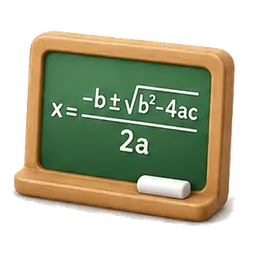
- Review the visible formula — Distance = sqrt((x₂ - x₁)^2 + (y₂ - y₁)^2) — before you change units, order, or rounding.
- If the answer seems off, compare the page with a related fractions & decimals tool before assuming the formula is wrong.
Common mistakes and final checks
Most calculation errors do not come from complex math. They come from swapped units, copied values, premature rounding, or using the wrong interpretation of the result. Reviewing a short checklist before you move on is often enough to catch the problem early.
Common mistakes
- converting or simplifying in the wrong order
- rounding repeating decimals too early
- changing only one part of a fraction
Before using the answer
- Check numerator, denominator, or decimal placement.
- Keep exact values as long as possible.
- Verify the final value in an alternate format if possible.
Common questions
How accurate is this distance formula page?
This Distance Formula page follows the standard formula shown on the page. Always verify units, rounding, and any official source before using the result in a final decision.
What should I check before using the distance formula result?
Make sure the units match your situation, review the example, and confirm that the formula fits your use case.
What formula does this distance formula page use?
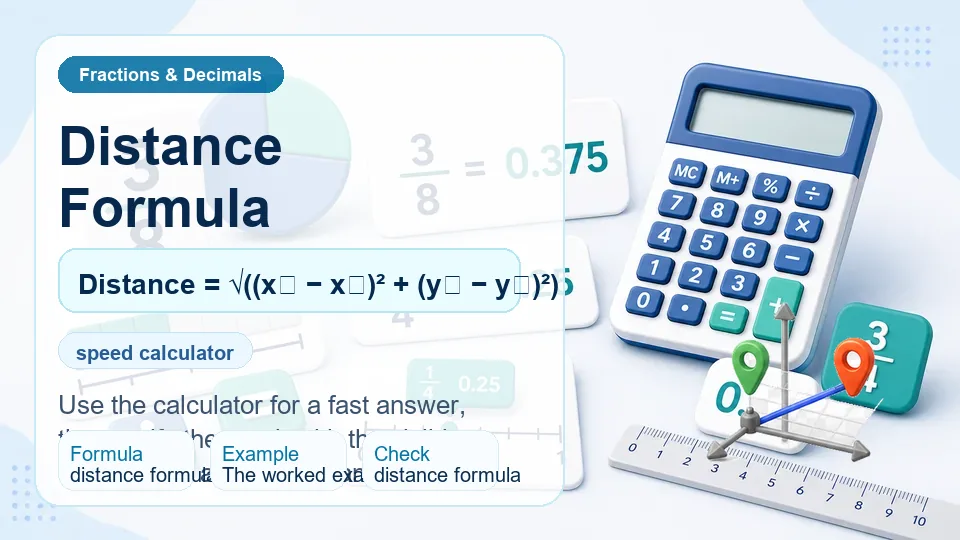
Distance = √((x₂ − x₁)² + (y₂ − y₁)²)
What formula does Distance Formula use?
Distance Formula uses Distance = sqrt((x₂ - x₁)^2 + (y₂ - y₁)^2). The page also shows a worked result so you can compare the formula with a live answer instead of trusting a black-box number.
Can I verify distance formula by hand?
Yes. Start with the same inputs used in the reference table, apply the formula manually, and compare your answer with the calculator result. For a quick check, the default example row currently gives Distance: 10.
What usually causes a wrong distance formula result?
The most common issues are converting or simplifying in the wrong order, rounding repeating decimals too early, and entering values that do not match the formula shown on the page.
When should I use a related tool instead of Distance Formula?
Use a related tool when you need the reverse calculation, a different unit system, or a nearby comparison such as exact value vs rounded value.
Is there a quick example for Distance Formula?
Yes. One fast reference check is Distance: 16.1012. This helps you spot obviously wrong entries before you rely on the final answer.